
By kodewright · Published: 2026-04-25 · Updated: 2026-11-02
How to Check Word Count in Google Docs, Word & Notion
Check word count in Google Docs (Ctrl+Shift+C), Microsoft Word (Ctrl+Shift+G), or Notion — plus why native counters miss half the picture.
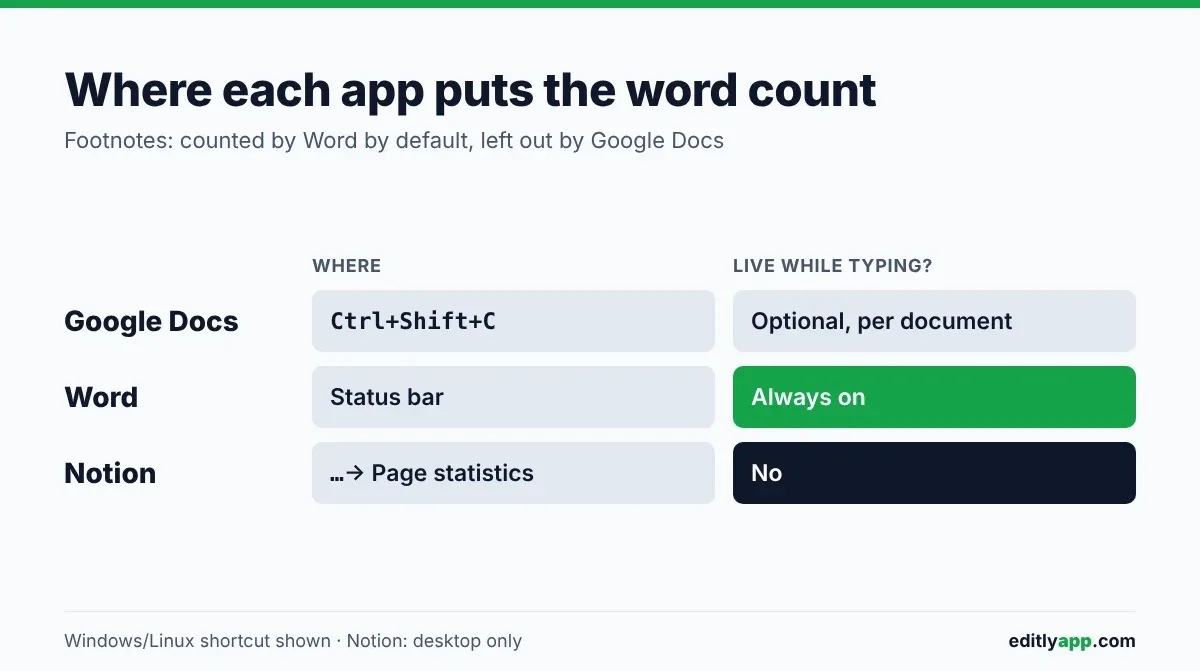
In Google Docs press Ctrl+Shift+C (Cmd+Shift+C on Mac). In Microsoft Word, read the number in the status bar at the bottom of the window. In Notion, open the ... menu and pick Page statistics.
Those three answers cover most people. The part that causes trouble is what each app decides to count, so a short tour of each follows, then a way to get one number you can trust.
Google Docs
The menu path is Tools → Word Count, and the shortcut is Ctrl+Shift+C on Windows and Linux or Cmd+Shift+C on Mac. The dialog shows words, characters and pages. If you select some text first, it shows the count for the selection next to the total.
Tick "Display word count while typing" in that dialog and a small counter appears in the bottom-left corner. It's off by default, and it's a per-document setting, so a new document starts with it off again.
Footnotes are the catch. Google Docs leaves them out of the count. For a paper with heavy footnotes, that can leave you well under the number a marker sees when they open the file in Word.
Microsoft Word
Word has the counter in the most visible place: the status bar at the bottom shows "Words" all the time. Click it, or go to Review → Word Count, to open the dialog. On Windows, Ctrl+Shift+G opens the same dialog directly. On Mac the menu is Tools → Word Count, and Cmd+Shift+G should do the same; I haven't tested the Mac version myself.
The dialog has one checkbox that decides most disagreements with other tools: "Include textboxes, footnotes and endnotes". It's ticked by default. Untick it and Word stops counting them, which is how Google Docs behaves by default.
| Google Docs | Microsoft Word | |
|---|---|---|
| Where | Tools → Word Count | Status bar, or Review → Word Count |
| Shortcut | Ctrl+Shift+C / Cmd+Shift+C | Ctrl+Shift+G (Windows) |
| Live counter | Optional, per document | Always on |
| Footnotes | Not counted | Counted by default, can be excluded |
Notion
I don't use Notion, so treat these steps as a pointer and check them against your version. On a page, open the ... menu in the top-right corner and scroll to Page statistics. You get words, characters and reading time for that one page. The panel doesn't update as you type, so you close and reopen it to refresh the number. Expect it on desktop only, not on your phone.
That's workable for a quick look. It's slow if you're writing against a hard limit and checking every few sentences.
Why the numbers differ
The footnote default is the one difference I can point to with confidence. There's a second one I measured with the same segmenter the Word Counter uses. Intl.Segmenter splits a hyphenated phrase like "well-known" into two words, while splitting on spaces counts it as one. Run the string "well-known state-of-the-art" through both and you get 6 words against 2. Neither is wrong, but an app that counts one way will disagree with one that counts the other on any text full of hyphens.
I haven't had two tools give me different counts on the same text myself, so I can't say how big the gap usually is. If you're near a limit, leave some room.
What I do with a hard limit
I write mostly in a code editor, in Markdown files, so there's no built-in counter at all. I paste the text into Word Counter and read the number there. I built it so the text never leaves your browser; there's no server for it to be sent to, which matters when what you paste is an unsent application.
Pasting is also useful for what the native counters don't show:
- Reading time and speaking time. For a talk, Words to Minutes turns a script into a run-time, or a time slot into a word target, at 130 words per minute.
- Readability. The Readability Score tool gives Flesch-Kincaid grade, Flesch Reading Ease and Gunning Fog for the same text.
- Keyword and sentence stats, updating live as you edit.
If the text came from a PDF, it can arrive with stray line breaks and non-breaking spaces. Fix Spaces tidies those before you count. If you need to swap a term everywhere before the final check, Find & Replace supports regex.
| Feature | Google Docs | Microsoft Word | Notion | Word Counter |
|---|---|---|---|---|
| Word and character count | Yes | Yes | Yes | Yes |
| Live update | Optional | Yes | No | Yes |
| Reading and speaking time | No | No | Reading only | Yes |
| Readability score | No | No | No | Yes |
| Needs the app | Yes | Yes | Yes | No |
Between apps, pick one tool for the final count and don't mix numbers from several. A grant form or a job post that says "max 500 words" is checked by its own counter, so aim a little under.