
By kodewright · Published: 2026-04-06 · Updated: 2026-10-20
Regex Find & Replace — Master Pattern Matching in 2026
Master Regex find and replace to transform text instantly. Learn capture groups, quantifiers, and patterns with our practical guide for writers and devs.
Regex find and replace searches for a pattern instead of a fixed string and rewrites whatever it matches. In the Find & Replace tool, tick "Use Regular Expression (Regex)", type the pattern in the Find field, type the replacement in "Replace with", and click Replace All. Parts of the match can be reused in the replacement as $1, $2 and so on, which is what makes it more than a fancier Ctrl+F.
Take a CSV where the dates came out as 2026-04-06 and your spreadsheet wants 06.04.2026. Plain find and replace can't help, because every date is different. A pattern can: find four digits, a dash, two digits, a dash, two digits, and put the three groups back in the opposite order.
What the tool actually runs
The tool hands your pattern to the browser's own JavaScript RegExp, so everything below follows JavaScript rules. I built it so the text and the pattern are processed by the page itself; nothing is posted to a server, which matters if you're pasting logs or customer lists. A few details from the source that affect how you write patterns:
- The Case Sensitive checkbox adds or removes the
iflag. It's off by default, socatalso matchesCat. - Global Match adds the
gflag and is on by default. The Replace button changes the first match only, Replace All changes every match. - There is no
mflag, so^and$match only the start and end of the whole text, not of each line. - There is no
sflag, so.stops at line breaks. - There is no
uflag. This one bites, and I'll come back to it below.
Matches are highlighted in the input and counted next to the Find field. A pattern with a syntax error shows "Invalid Regex pattern" instead.
| Token | Meaning | Example |
|---|---|---|
\d | One digit (0-9) | \d{3} matches "123" |
\w | One of A-Z, a-z, 0-9, _ (ASCII only) | \w+ matches "Hello_World" |
\s | Whitespace: space, tab, line break | \s{2,} finds runs of whitespace |
\S | Anything that isn't whitespace | \S+ matches "José" or "Іван" |
. | Any character except a line break | c.t matches "cat", "cut", "c9t" |
+ | One or more of the previous item | \d+ matches "1" and "1000" |
* | Zero or more of the previous item | ba* matches "b", "ba", "baaa" |
\b | Edge of a word | \bthe\b skips "there" |
^ / $ | Start / end of the text | ^Start matches only at the very beginning |
Capture groups
Anything inside parentheses is remembered, and the Replace field can call it back as $1, $2, in the order the opening parentheses appear.
For the dates above:
- Find:
(\d{4})-(\d{2})-(\d{2}) - Replace:
$3.$2.$1
I ran that in Node on 2026-04-06 and got 06.04.2026. The same trick reorders names. For a list of Firstname Lastname lines:
- Find:
(\S+)\s(\S+) - Replace:
$2, $1
John Smith, Іван Петренко and José García come out as Smith, John, Петренко, Іван and García, José. Once the list is in that shape, Sort Lines puts it in alphabetical order by surname, and if the source was typed in capitals, Case Converter fixes the casing afterwards.
I used \S+ on purpose. The obvious choice for "letters" is \w+, but \w is ASCII-only, so it handles John and skips Іван entirely (and José, since é isn't in A-Z). The proper Unicode fix is \p{L}+, and that only works with the u flag. I tried (\p{L}+)\s(\p{L}+) with the same flags the tool uses (gi) and it matched nothing, with no error message, so the text just came back unchanged. In your own JavaScript, add the u flag (/(\p{L}+)\s(\p{L}+)/giu works). In this tool, use \S+ or a character class like [^\s,]+.
The replacement field also understands $& (the whole match) and named groups: (?<last>\S+) can be inserted as $<last>.
Greedy and lazy quantifiers
* and + are greedy: they take as much as they can and only give back what the rest of the pattern needs. This shows up the first time you try to strip HTML with <.*>.
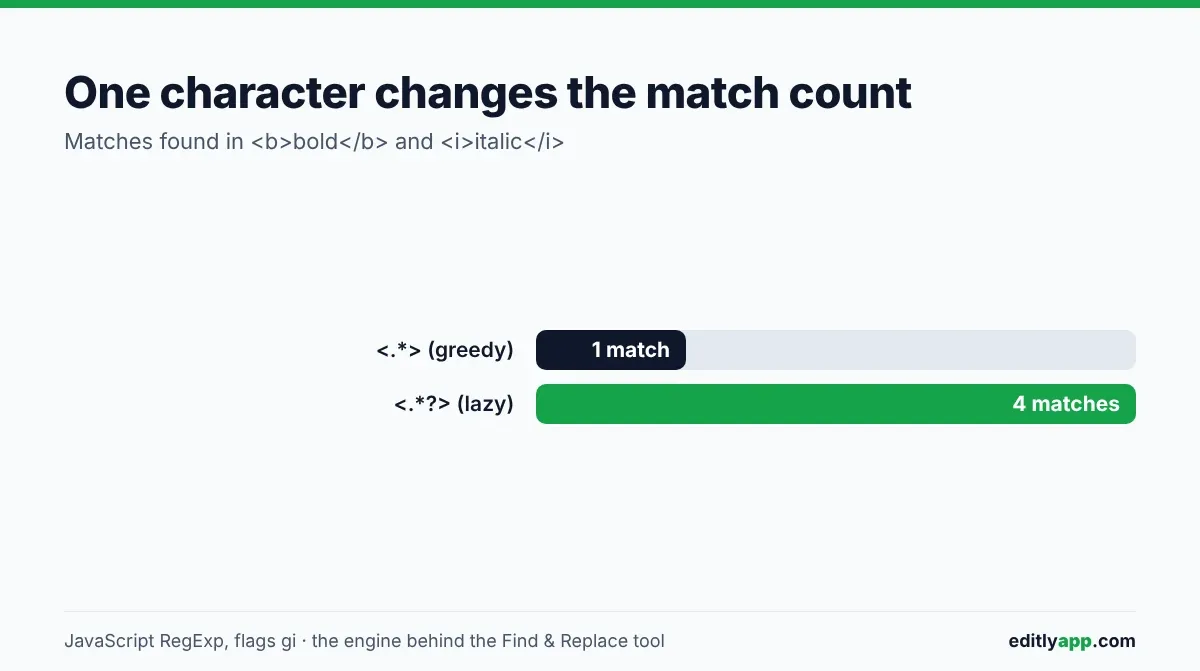
Run it on <b>bold</b> and <i>italic</i> and you get one match, the entire string, because the greedy .* runs to the last > on the line. Add a question mark and it becomes lazy:
- Greedy:
<.*>finds 1 match - Lazy:
<.*?>finds 4 matches:<b>,</b>,<i>,</i>
Because . doesn't cross line breaks, the damage of a greedy pattern stays on one line. On a document with a tag on each line, <.*> wipes each line separately; it won't swallow the whole file. That is still enough to delete content you wanted, so test on a small sample first. If you only need to tidy whitespace, Remove Spaces does that without any pattern writing.
Patterns for writers and editors
Double spaces after a period
- Find:
\. {2,} - Replace:
.
(There's a space after the period in the replacement.) This also catches three or more spaces, which a pattern with exactly two spaces leaves partly alone. On a test string with a two-space and a three-space gap, {2,} fixed both, while the exact-two version left the three-space gap as two spaces.
Passive voice candidates
- Find:
\b(am|is|are|was|were|been|being)\s\w+ed\b
Regex can't read grammar, so treat the highlights as a list to check. It finds "was invited", "is fixed" and "been reviewed". It misses irregular participles like "is written" or "was caught", and it flags adjectives such as "is red". If the point of the exercise is a shorter draft, how to reduce word count covers what to cut once you've found the weak spots.
Repeated words
- Find:
\b(\w+)\s+\1\b - Replace:
$1
The \1 inside the pattern means "the same text group 1 just matched". On "This is is a test, the the end" it leaves "This is a test, the end". It also collapses legitimate repeats like "had had", so check the match count before hitting Replace All. Afterwards, paste the result into the Word Counter to see the new total.
Patterns for developers
Stripping HTML tags
- Find:
<[^>]+> - Replace: (leave empty)
I'd use this over <.*?>, and the reason is line breaks. A tag split across two lines, like <a then href="x">, is missed by <.*?> because . stops at the newline, while [^>] matches line breaks and gets it. Both versions share one weakness: an attribute containing a literal >, such as alt="Score > 90", ends the match early and leaves 90" src="x.png"> behind. Regex is the wrong tool for arbitrary HTML. For clean markup it's fine; for anything messy, use a parser.
After the tags are gone, the Word Counter gives you the count of the visible text instead of the markup.
Backtracking can freeze a tab
Nested quantifiers can make the engine try an exponential number of combinations. In Node, /(a+)+b/ against 26 letters a and no b took about 3.7 seconds. The tool runs the regex on the page's main thread, with no worker, so a pattern like that would lock the tab until it finishes. If the page stops responding, a nested (x+)+ or (x*)* is the first suspect.
Case, global and anchors
If you search for a variable name in code, tick Case Sensitive. For a word in prose, leave it off, or you'll miss every capitalised occurrence at the start of a sentence. Leave Global Match on for bulk edits and switch it off when you want to test a risky pattern on the first hit only.
Because there's no m flag, ^Start on a two-line text changes only the first line. I confirmed that on Start here followed by Start there: only the first became X. If you need per-line anchors, use another environment, or avoid anchors and match on what surrounds the text.
If you're coming from Word
Word's "Use wildcards" is not regex: it uses [0-9] where regex has \d, < and > for word edges, @ for "one or more", and \1 in the replacement where JavaScript uses $1. Patterns pasted between the two usually just fail to match. Finding and replacing text in bulk without Word lines up the two syntaxes and covers the invisible-character problem that makes identical-looking text refuse to match.
Standards
The tool uses the JavaScript flavor of regex (ECMAScript). It differs from POSIX regular expressions and from Perl-style PCRE in places, so a pattern copied from grep or a Perl one-liner may need changes. The MDN guide to regular expressions is the reference I check, including for lookaheads and flags.
Frequently Asked Questions
Is regex hard to learn?
The syntax looks unfriendly, but the working set is small. Literal text, \d, \s, ., +, * and parentheses cover most editing jobs. Learn those, and look up the rest as you hit it.
Does your tool support backreferences?
In the replacement field, yes: $1, $2, $& and $<name> for named groups. Inside the pattern, \1 also works, which is how the repeated-words pattern above finds a doubled word.
Will regex slow down my browser?
Rarely. For ordinary patterns on ordinary text the replacement is quick. Slowdowns come from nested quantifiers that backtrack heavily, as in the example above, and the tool has no worker to move that off the page.
How do I match a literal period or bracket?
Put a backslash in front of it. \. matches an actual period, \[ an actual opening bracket, \( a parenthesis. Without the backslash . matches any character.
Can regex find phone numbers?
A simple US pattern is \d{3}-\d{3}-\d{4}, but it matches only 555-123-4567. This one handles (555) 123-4567, 555.123.4567 and 555 123 4567 too: \(?\d{3}\)?[-.\s]?\d{3}[-.\s]?\d{4}. I checked all four formats against it. It is loose by design, so expect the odd false hit on long digit strings.
If you're using these patterns to trim a draft against a limit, how many words per page will tell you what your count means in pages.