
By kodewright · Published: 2026-05-23
How to Compare Two Texts Online Free (Word-Level Diff)
Spot every added, removed, and changed word between two drafts instantly — word-level diff, Unicode-safe, 100% in your browser. Compare your texts now.
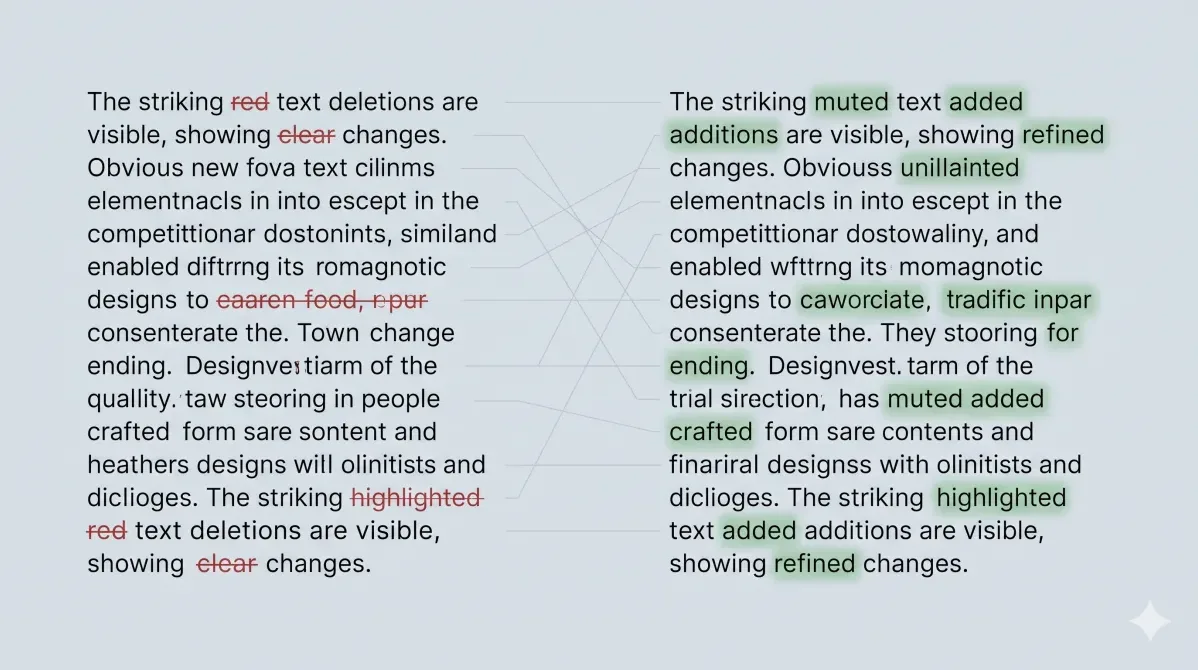
You have two versions of the same text and you need to know exactly what changed. Maybe an editor sent back your essay, maybe a colleague rewrote your email, maybe you're staring at two contract clauses that look identical. Reading them side by side and spotting the differences by eye is slow and unreliable — your brain skims, and the one word that matters is the one you miss.
The fix takes about three seconds. Paste both versions into our Text Diff Checker — it runs 100% in your browser, zero data sent to any server — and every added, removed, and unchanged word is color-coded instantly. Green for what's new, red for what's gone, gray for what stayed. No reading required.
The Fastest Way to Compare Two Texts
Here's the whole workflow:
- Open the Text Diff Checker
- Paste your original text in the left box
- Paste the revised version in the right box
- The diff renders live — additions in green, deletions in red
A summary bar tells you the counts: X words added, Y removed, Z unchanged. That single line is often all a busy reviewer needs — it answers "how much actually changed?" before you read a single word of the detail.
That's it. No upload dialog, no file picker, no "processing your document" spinner. The comparison is computed the moment both boxes have text in them.
Word-Level vs Character-Level vs Line-Level: Pick the Right Granularity
Not all diffs are the same. The granularity — the size of the chunk being compared — completely changes what you see. Pick wrong and the result is useless.
| Granularity | What it compares | Best for | The trade-off |
|---|---|---|---|
| Character-level | Every single character | Code, exact strings, typo hunting | Painfully noisy on prose — flags every letter |
| Word-level | Each word as one token | Essays, articles, emails, captions | The sweet spot for anything human-readable |
| Line-level | Whole lines at a time | Code, CSV rows, lists | Misses edits inside a line |
For comparing two texts — actual sentences and paragraphs — word-level is almost always what you want. Change "the cat sat" to "the dog sat" and a character diff screams about three changed letters in the middle of a word; a word-level diff calmly tells you "cat" became "dog." That's the difference between a readable review and visual noise.
The Text Diff Checker is word-level by design. It's tuned for prose, not source code.
The Invisible-Character Trap (Why "Identical" Texts Differ)
This is the bug that wastes everyone's afternoon. You paste two paragraphs that are obviously the same, hit compare, and the tool lights up half the text in red and green. What happened?
Invisible characters. The text isn't identical — it just looks identical. The usual suspects:
- Smart quotes — Word and Google Docs auto-convert
'to'(U+2018/U+2019). Paste from one source and type in another, and your apostrophes don't match. - Non-breaking spaces — Web content is full of
(U+00A0), which is a different character from a regular space. - Trailing whitespace — A stray space at the end of a line is invisible but counted.
- Line endings — Windows uses
\r\n, Unix uses\n. Same-looking line break, different bytes.
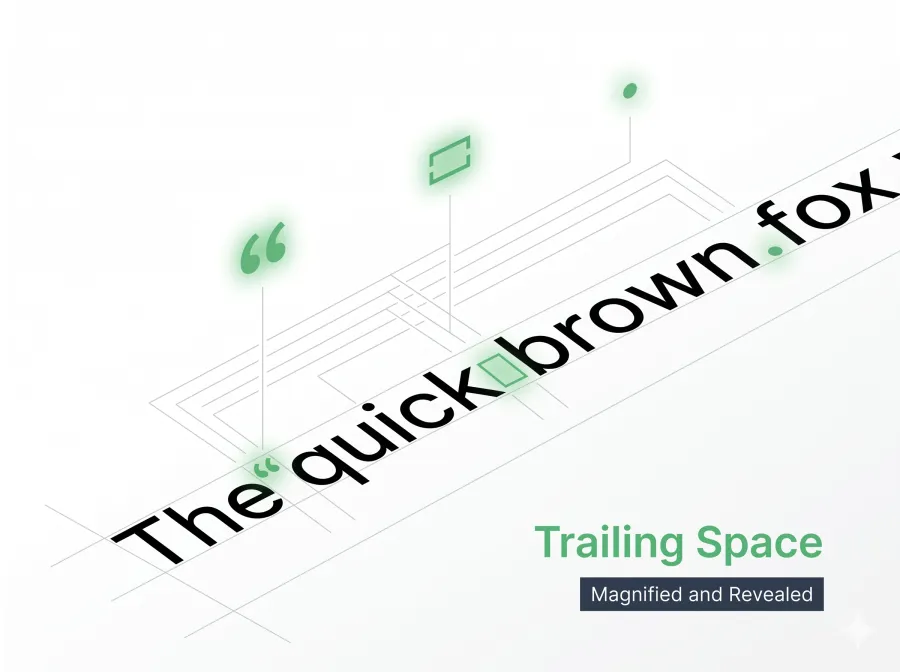
The fix is a 10-second pre-clean. Run both texts through the Remove Spaces tool first — it straightens smart quotes, strips non-breaking spaces, and trims line endings in one pass. We covered the full mechanics of this in how to remove extra spaces from text online, because pasted text arrives contaminated more often than not. Clean first, then diff. Your comparison goes from chaos to signal.
What People Actually Use This For
"Compare two texts" sounds abstract until you map it to real work. Here's who reaches for a diff tool and why:
| Who | Comparing | What they're looking for |
|---|---|---|
| Students | Their draft vs the professor's edited return | Exactly which sentences got changed and why |
| Authors | Chapter v3 vs chapter v4 | Whether a late edit accidentally cut a key line |
| SMM managers | Two caption variants for A/B testing | The precise wording difference between version A and B |
| Legal / ops | Contract sent vs contract returned | Redlines — every clause the counterparty quietly altered |
| Editors | AI-generated draft vs human-edited final | How much of the machine output survived the edit |
That last one is increasingly common. Drop the raw model output on the left, your polished version on the right, and the green/red split shows your actual editing footprint at a glance — useful for proving a human touched the text, and for learning where you consistently rewrite.
How the Comparison Actually Works (For the Curious)
Under the hood, the diff uses the Longest Common Subsequence (LCS) algorithm — the same dynamic-programming approach that powers git diff and most version-control systems. It doesn't guess. It computes the mathematically longest run of words shared by both texts in the same order, then marks everything outside that run as added or removed.
The cost is $O(m \times n)$, where m and n are the word counts of the two texts. In practice that means two 5,000-word documents — 25 million cells in the comparison matrix — still resolve in well under a second on a normal laptop. It just works.
The tokenization step matters as much as the algorithm. A junior implementation splits on spaces with text.split(' ') and calls it done. That breaks the instant you feed it Chinese, Japanese, or Thai — scripts that don't put spaces between words — returning one giant token instead of a sentence, so any edit lights up the whole line. The Text Diff Checker tokenizes with Intl.Segmenter instead: the W3C-standard, locale-aware word segmenter built into every modern browser — the same API we put through its paces in how to count words in JavaScript. It splits 私は学生です into real words, so changing 学生 to 先生 highlights exactly those two characters, not the entire sentence.
There's a second payoff. Each word token keeps its trailing punctuation and digits attached, so a numeric edit is caught as a clean token swap. Change a contract's $100,000 to $200,000 and the diff flags that one token — it doesn't quietly skip the digits the way a letters-only /\p{L}+/ pattern would. Words, numbers, and symbols all get compared.
Here's the whole pipeline — two strings in, colored markup out:
| Token in A | Token in B | LCS verdict | Rendered as |
|---|---|---|---|
the | the | in common subsequence | gray — unchanged |
cat | — | missing from B | |
| — | dog | missing from A | green — added |
sat | sat | in common subsequence | gray — unchanged |
Tokenize → align with LCS → wrap each token in a colored span. Three stages, no server, no guesswork.
Bonus: Bulk-Editing Before You Compare
Sometimes the difference between two texts isn't an accidental change — it's a systematic one you want to apply yourself. Renaming a product across a document, swapping every "color" for "colour," normalizing terminology before a diff.
For that, reach for Find & Replace. Make the bulk change on one version, then diff it against the original to confirm the replacement hit every instance and nothing else. It supports full regex with a u flag for Unicode, so you can match patterns rather than literal strings — handy when the thing you're replacing has variations. Just remember what each tool is for: Find & Replace makes changes, the Diff Checker shows them. Used together they form a tight edit-and-verify loop.
And if you just want to know how long either version is — word count, reading time, readability grade — paste it into the Word Counter for the full breakdown.
The Privacy Angle Nobody Mentions
Most "compare text online" services quietly POST your two text blocks to a backend, run the diff server-side, and send the result back. For a grocery list, who cares. For an unsigned contract, an embargoed press release, or a manuscript you haven't registered copyright on yet — that's your confidential text sitting in someone else's server logs.
The Text Diff Checker never makes that request. The LCS computation runs in the same V8 engine rendering this page; your two texts never leave the tab. There's no upload, so there's nothing to intercept, cache, or subpoena. It's the kind of guarantee that should be the default for text tools and somehow still isn't.
Two versions, one comparison, zero data leaving your machine. Open the Text Diff Checker and find out exactly what changed.